
How to Free Up Disk Space on Your Mac
“Your disk is almost full.” Every Mac user sees that warning sooner or later, and macOS rarely tells you what is actually taking the space. Apps you installed once and forgot, old project files, and — if you write code — build caches and simulators that quietly grow into tens of gigabytes.
Mac Monitorly 2.1.1 adds a Disk monitor and a Storage Cleanup tool. In this guide, we’ll show you how to see where your storage goes and get it back in a few clicks.

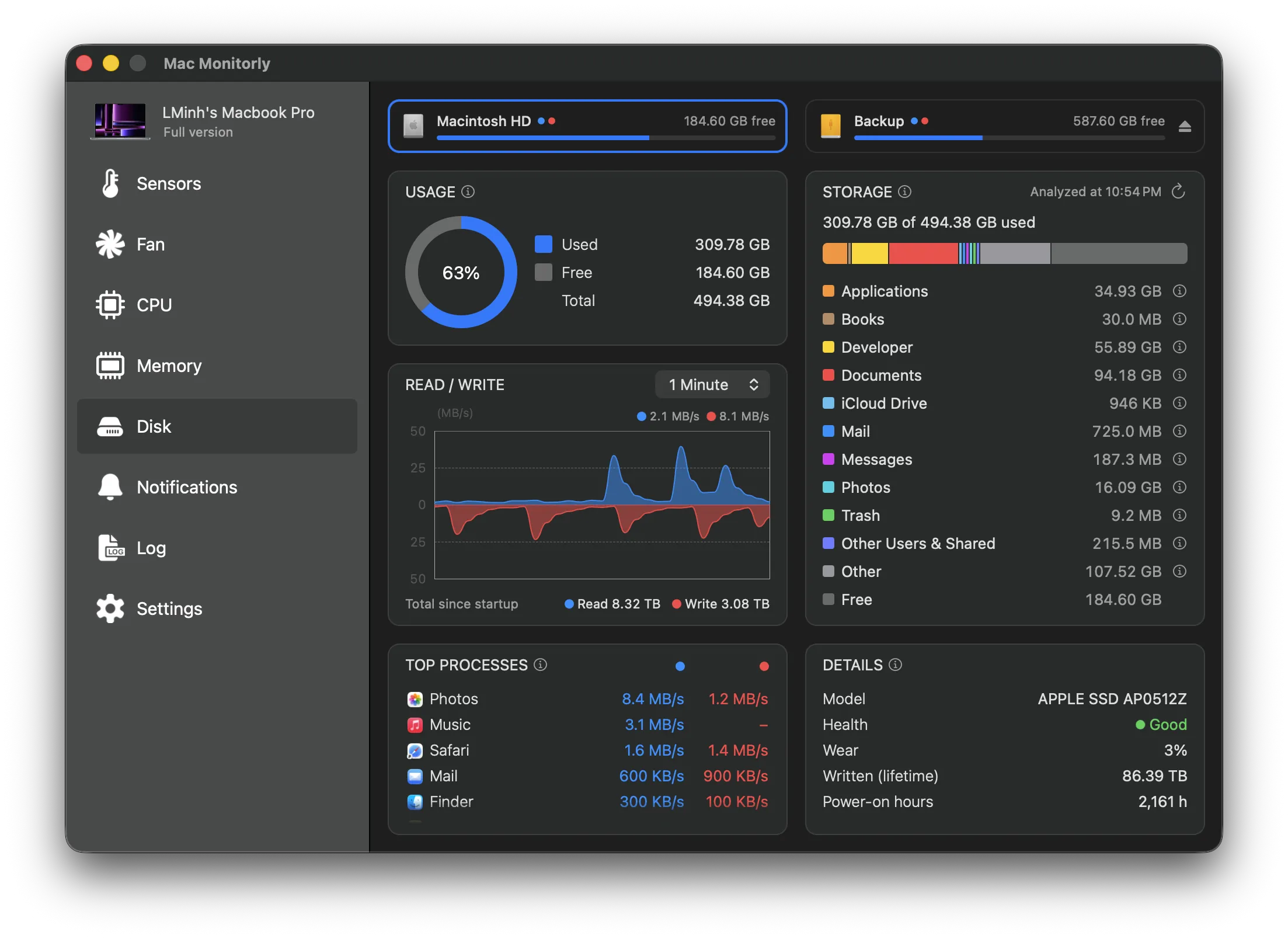
Step 1: See What’s Using Your Storage
Open the new Disk screen in Mac Monitorly. You get:
- Storage by category: apps, documents, photos, developer files, system data and more — the same breakdown as System Settings, without digging through menus.
- Live read and write speeds with history graphs, plus the apps reading and writing the most.
- Drive health and wear, so you know how your SSD is doing.
- Every connected volume one click away, including external drives.
Step 2: Remove Apps You No Longer Use
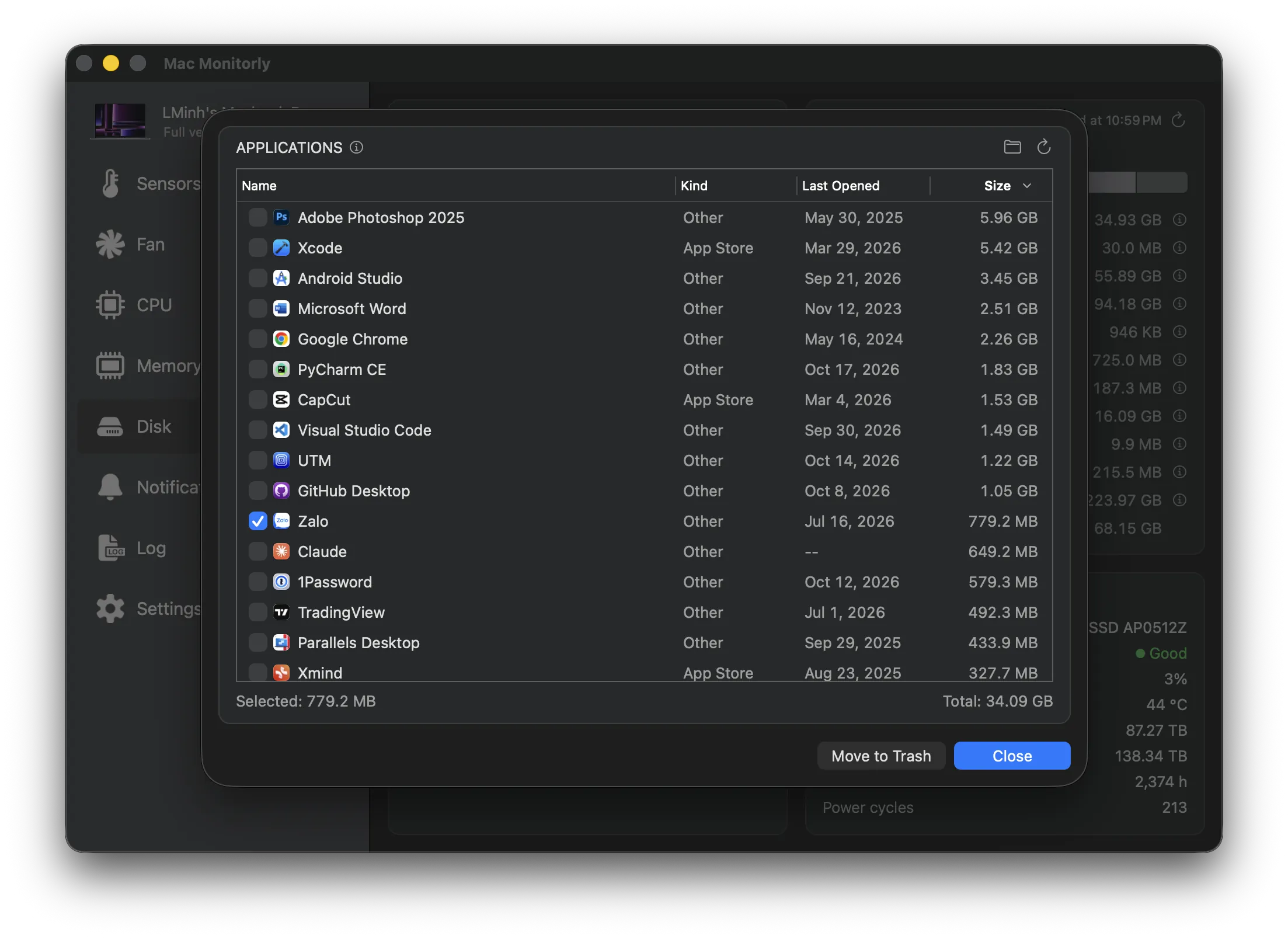
Storage Cleanup lists every app on your Mac with its size and the date you last opened it. Sort by size or by last opened, and the forgotten ones stand out right away: the 8 GB game you finished last year, the trial you never bought, the editor you replaced.
Select the ones you don’t need and move them to the Trash. Nothing is deleted permanently until you empty the Trash yourself.
Step 3: Clear What Xcode and Android Studio Leave Behind
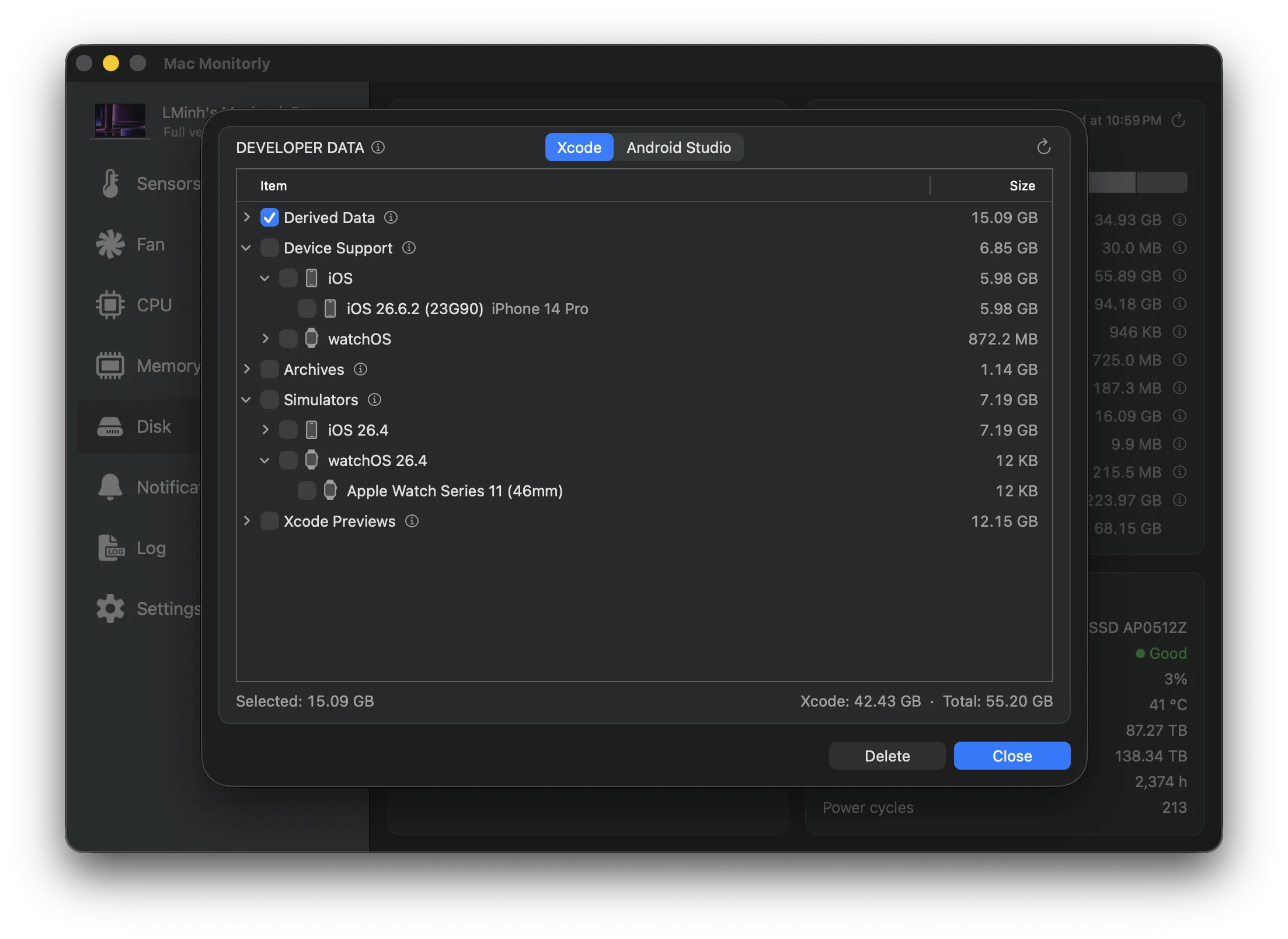
If you build apps, this is usually where the biggest wins are. Xcode and Android Studio keep data long after you need it:
- Derived data from every project you have ever built.
- Device support files for each iOS version you connected a device with.
- Old archives from past releases.
- Simulators and emulators for OS versions you no longer test on.
- Gradle caches from Android builds.
Mac Monitorly finds them, shows how much each one takes, and lets you clear them item by item — so you stay in control of what goes.
Step 4: Never Get Caught by a Full Disk Again
Add the new Disk item to your menu bar to see free space at a glance, and open its dropdown for usage and read/write speeds. Then set an alert for disk usage or low free space, and Mac Monitorly will tell you before macOS starts complaining.
Also New in 2.1.1
- Thermal pressure and the hottest CPU temperature in the CPU screen and dropdown, with a new thermal pressure alert.
- Send feedback right from the app.
- Now runs on macOS 11 Big Sur and later.
See the full list in the changelog.
Conclusion
A full disk slows everything down, and finding the culprits by hand takes time. With Mac Monitorly 2.1.1 you can see where your storage goes, remove what you don’t use, and keep an eye on free space from the menu bar — alongside the temperature, CPU, memory and fan monitoring you already rely on.
Mac Monitorly is free to try for 14 days, then a one-time purchase — no subscription. Already a user? Choose Check for Updates in the app to get 2.1.1.