
MCP Server for Mac: Ask AI Why Your Mac Is Hot
“Why is my Mac so hot?” Ask an AI assistant and it usually has to guess. Chat apps can’t read your Mac’s sensors, and on Apple silicon macOS has no built-in command that shows temperatures or fan speeds.
Mac Monitorly, the system monitor and Mac temperature monitor for your menu bar, now works as an MCP server for Mac. Connect Claude Desktop, Claude Code or Cursor, ask AI why your Mac is hot, and it answers from your Mac’s real readings.

- Xcode: 312% CPU
- Google Chrome Helper: 64% CPU
What Is MCP?
MCP, the Model Context Protocol, is an open standard that lets AI apps use outside tools. An app that supports it can ask an MCP server for information instead of guessing. Mac Monitorly’s MCP server gives your AI app a read-only view of your Mac’s hardware, so you can ask in plain words and skip the charts.
What You Can Ask
Ask the way you’d ask a friend who knows Macs. For example:
- “Why is my Mac so hot?” It checks your temperatures, Mac fan speed and top apps, then names the likely cause.
- “Why was my Mac slow this afternoon?” It looks back through CPU load, memory pressure and swap to find when things went wrong.
- “Is my Mac running hotter this week?” It compares temperature history across the week.
- “Are my fans working normally?” It reads each fan’s current speed.
- “Which app is using the most memory?” It lists the top apps right now.
History covers system readings, not apps, so your AI app can tell you when your Mac struggled yesterday but not which app was behind it.
What Your AI App Can See
Mac Monitorly gives AI apps five read-only tools:
- Overview (
get_overview): CPU load, GPU usage, memory use and pressure, swap, the hottest temperatures and fan speeds. - Sensors (
get_sensors): every temperature, fan, voltage, current and power sensor. - Top apps (
get_top_processes): the busiest apps by CPU or memory. - History list (
list_history_metrics): which readings have history on your Mac. - History (
get_history): a reading over the last hour, day or 7 days, with its minimum, maximum and average.
How to Set Up the MCP Server
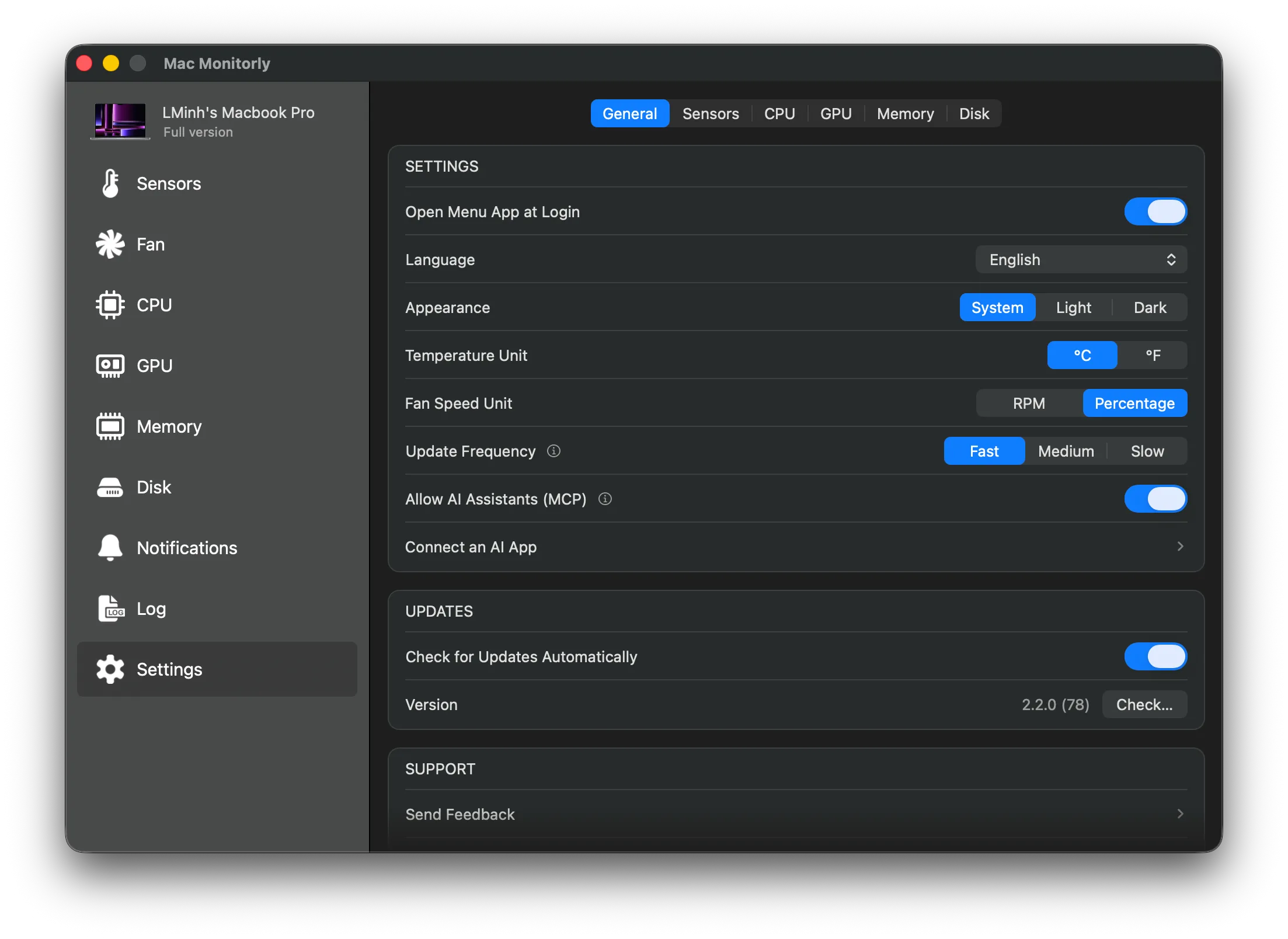
Open Mac Monitorly, go to Settings > General and turn on Allow AI Assistants (MCP). Then click Connect an AI App and pick the tab for your app.
Claude Desktop MCP
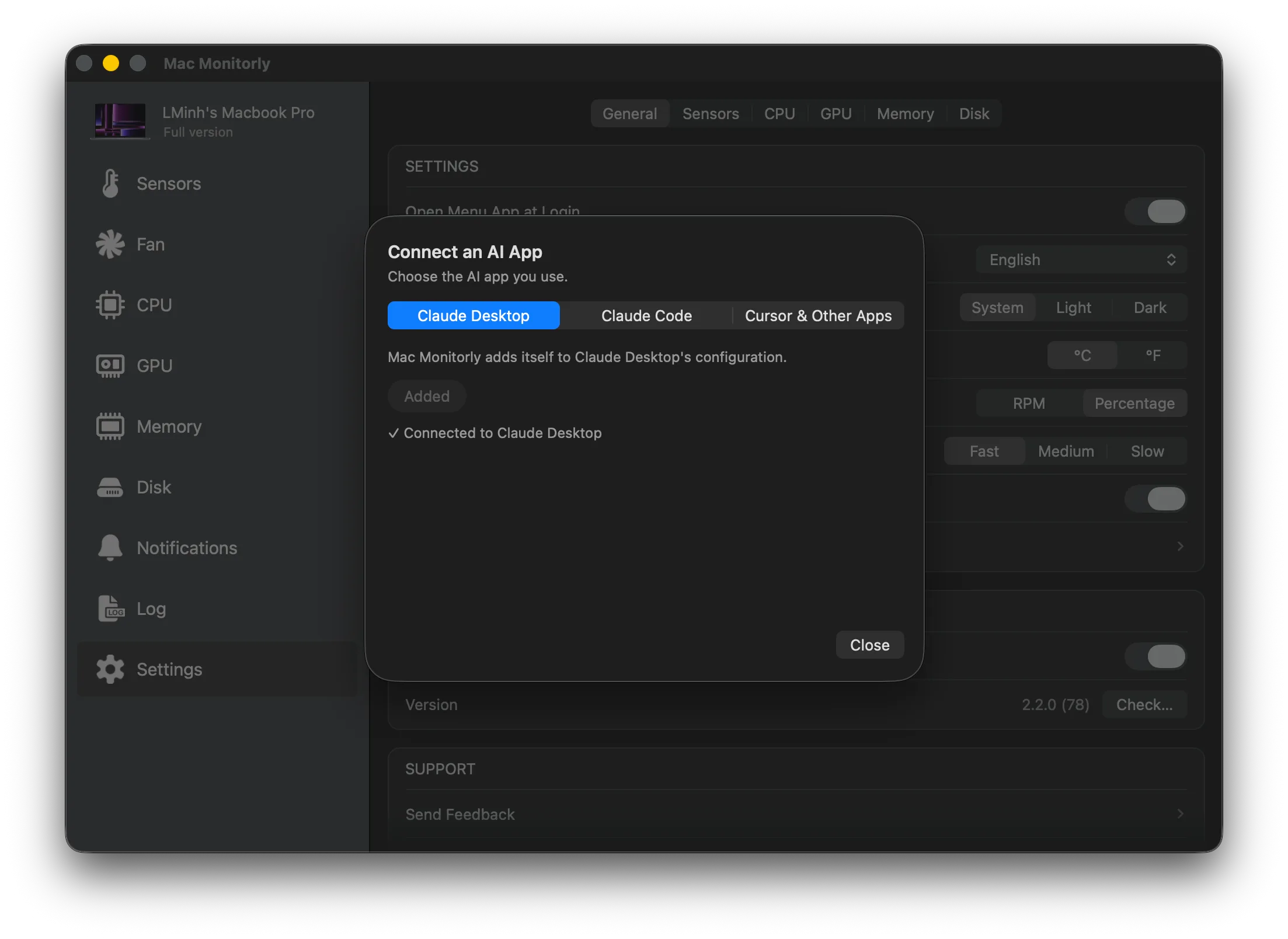
Click Add to Claude Desktop, then quit Claude with ⌘Q and open it again. Mac Monitorly adds itself to Claude’s configuration, keeps your other MCP servers as they are, and saves a backup of the old file first.
Claude Code
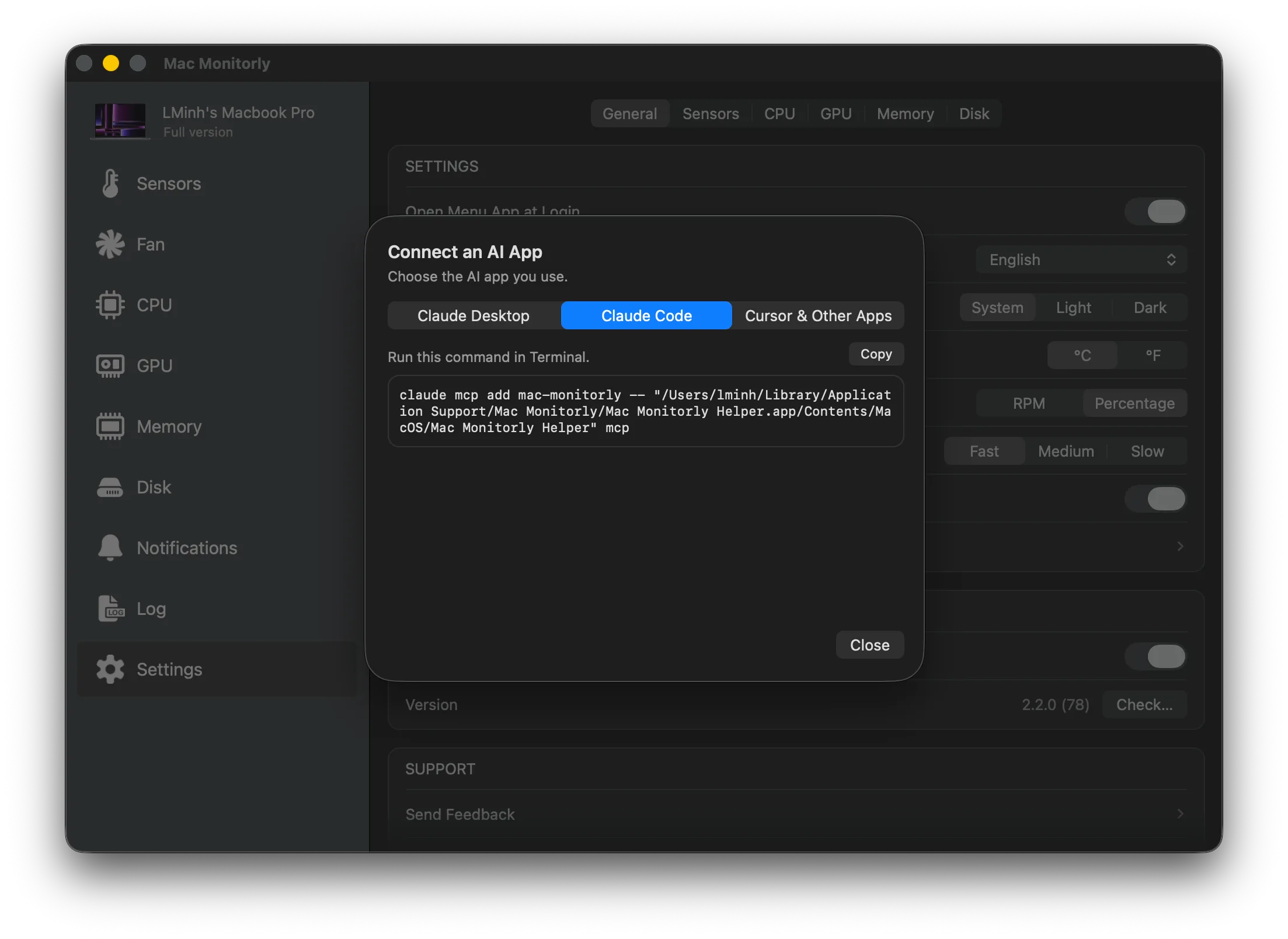
Copy the claude mcp add command from the Claude Code tab and run it in Terminal.
Cursor MCP and Other Apps
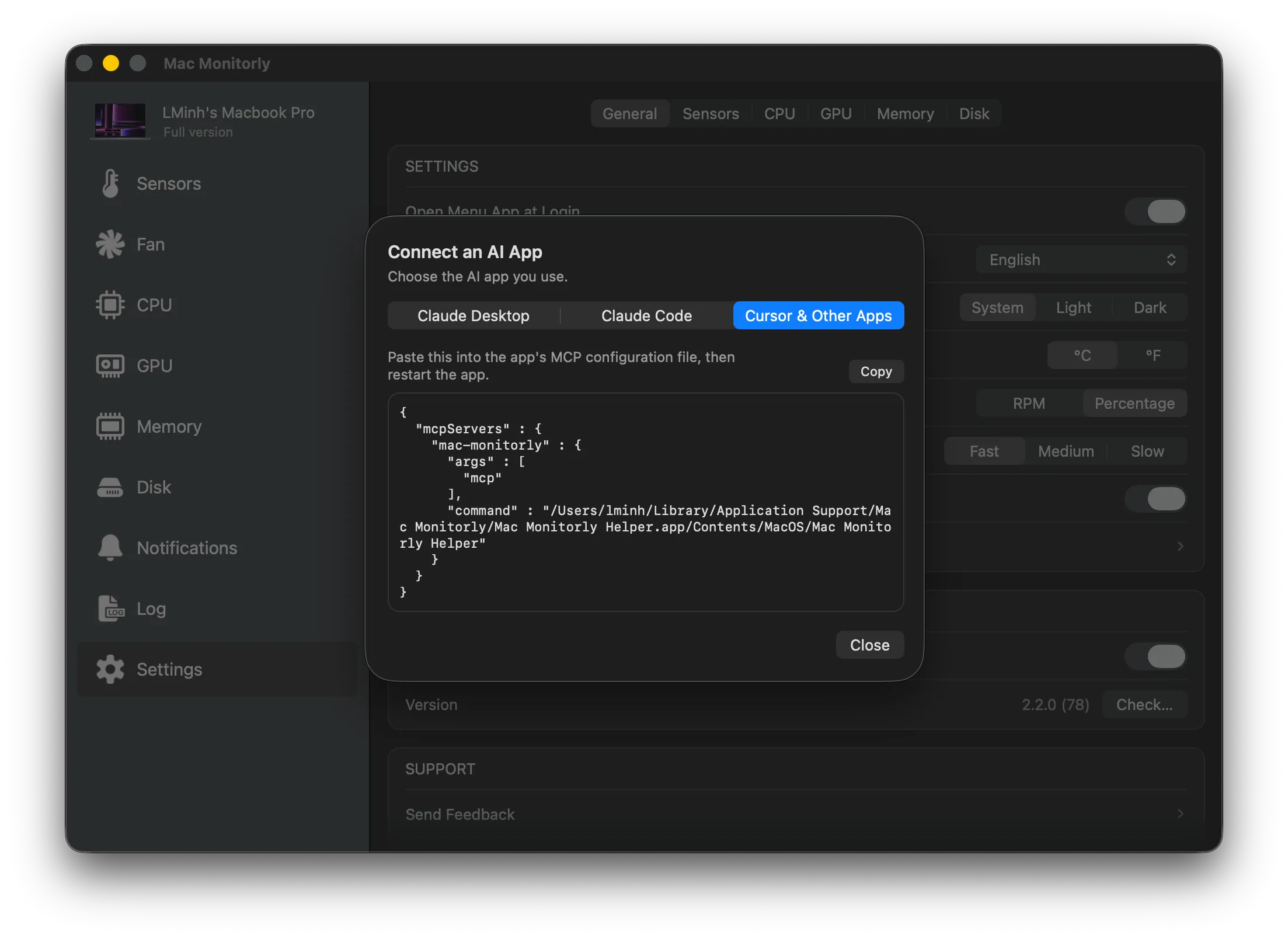
Copy the JSON from the Cursor & Other Apps tab, paste it into the app’s MCP configuration file and restart the app. This works with any app that can run a local MCP server.
Privacy and Security
- Off by default. Nothing is available to AI apps until you turn it on, and turning it off closes the connection right away.
- Read-only. An AI app can’t change your fans or your settings.
- No open ports. AI apps on your Mac connect through a private local socket that only your user account can reach.
One thing to keep in mind: Mac Monitorly doesn’t send these readings to the internet, but your AI app does. It sends your questions and what it reads from Mac Monitorly to its own servers, and that includes the names of running apps. If that matters for your work, check your AI app’s privacy policy or leave the setting off.
Frequently Asked Questions
Why is my Mac so hot?
Usually one or two apps are keeping the CPU or GPU busy, and the fans speed up to shed the heat. With Mac Monitorly connected, your AI app can read the current temperatures, fan speeds and top apps, and tell you which one is responsible.
How do I connect Claude Desktop to Mac Monitorly?
In Mac Monitorly, open Settings > General, turn on Allow AI Assistants (MCP), click Connect an AI App and choose Add to Claude Desktop. Then quit Claude with ⌘Q and open it again.
Does it work with ChatGPT?
Not yet. At the time of writing, ChatGPT connects only to remote MCP servers over HTTPS, and Mac Monitorly runs locally on your Mac. Claude Desktop, Claude Code, Cursor and other apps that run local MCP servers work.
Is it safe and private?
AI access is off by default and read-only, so an AI app can't change your fans or settings. There are no open network ports, and only AI apps on your Mac can connect. Mac Monitorly itself doesn't send these readings to the internet, but your AI app does send your questions and the answers it gets to its own servers, including the names of running apps.
Do I need a license?
AI access works during the 14-day free trial and with a license.
Conclusion
A Mac system monitor shows you the numbers. With AI access, you can also ask what they mean. Connect your AI app once, and “why is my Mac so hot?” gets a real answer, alongside the temperature, fan, CPU, memory and disk monitoring you already rely on. Learn more about what to do when your MacBook overheats.
Mac Monitorly is free to try for 14 days, then a one-time purchase, with no subscription. See what’s new in the changelog.